How to play
Every part of TillieWorld, step by step. It's the same guide that's in the app under the “?” button, so you can read it with your child or look something up away from the iPad.
Your Shop
Be the shopkeeper. Ring up what your customers want, take the money and hand over their shopping.
 12
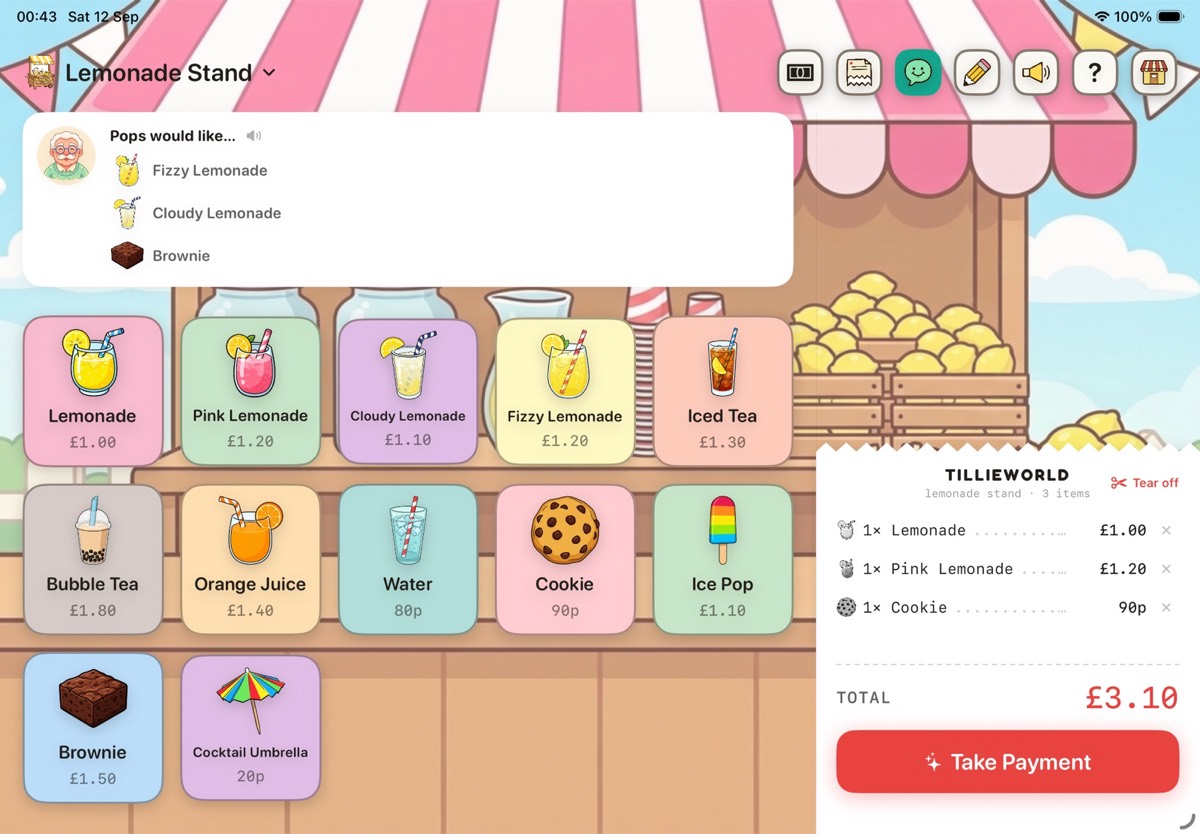
12- Tap things to sell. Each picture you tap goes on the receipt. Tap the little cross on a line to take it off again.
- Take Payment. When everything is on the receipt, tap Take Payment. Pay with the pretend card, or with cash.
 333
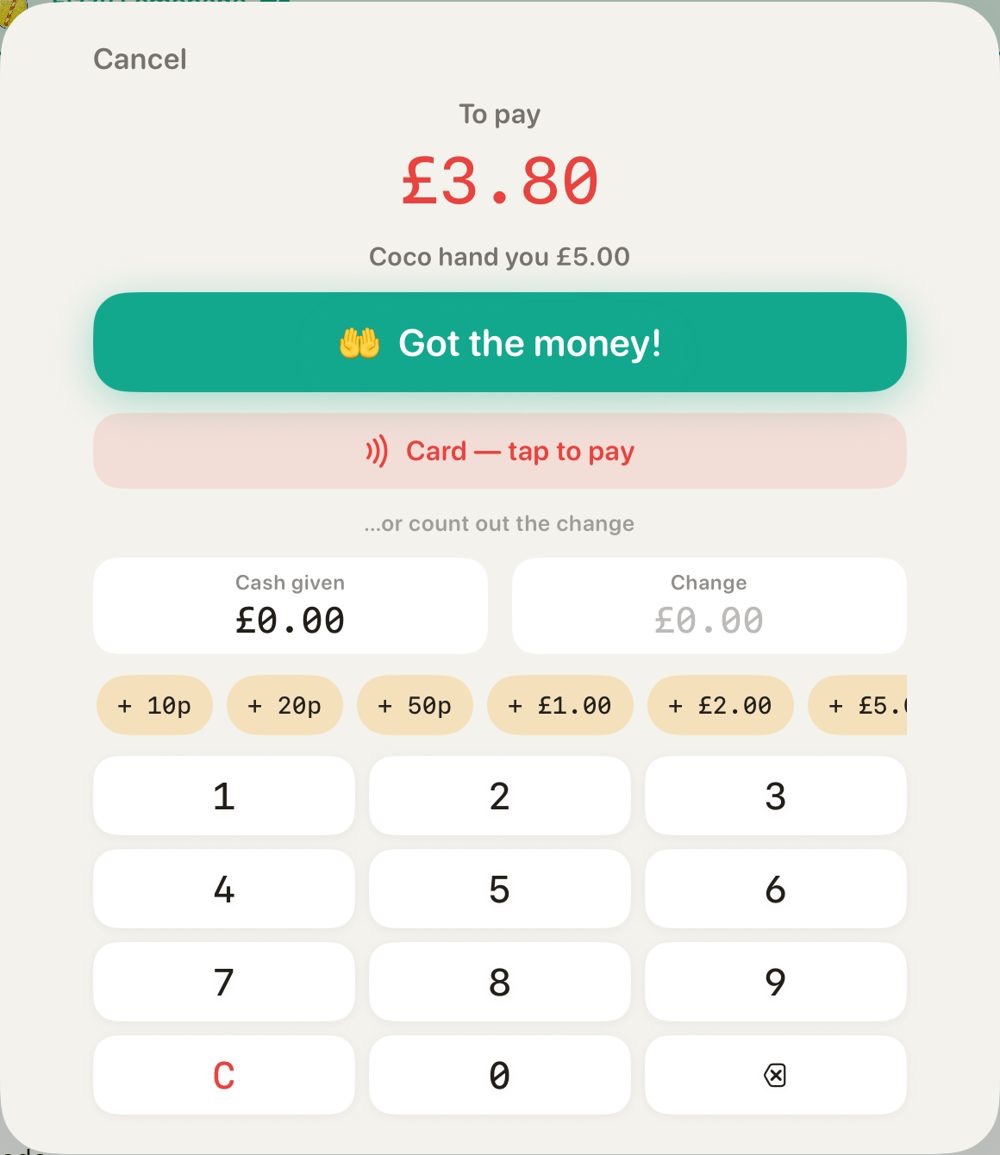
333- Card or cash. For cash, tap Got the money! For card, tap Card, then tap the card on the card machine. Older children can count out the change with the coins and the keypad first.
 44
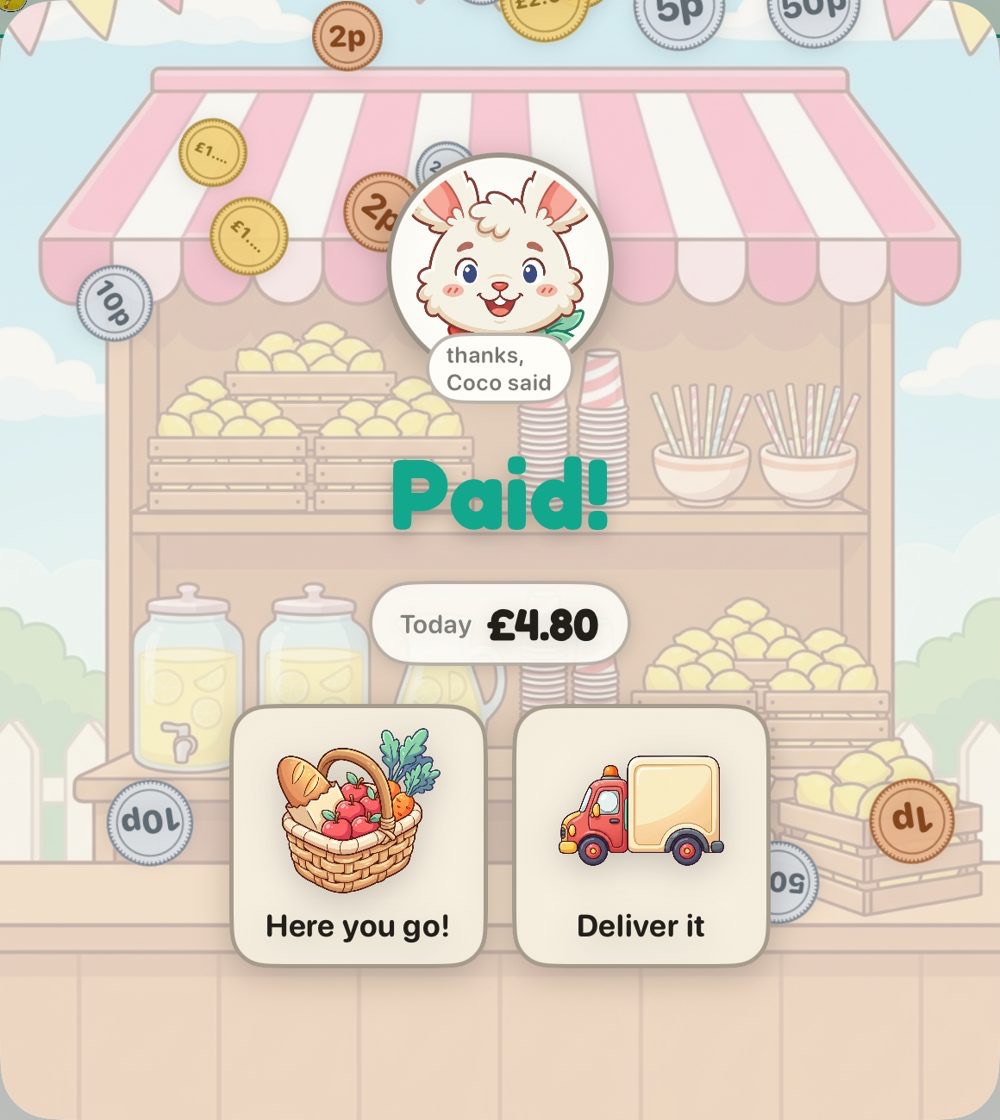
44- What happens next?. Once it's paid, choose Here you go! to hand it over. If you have the Kitchen or the van, you can choose Cook it or Deliver it instead.
Good to know
- Tap the smiley customer button to have customers come in and ask for things out loud. Their list ticks off as you ring it up, and the speaker button says it again.
- Customers wait as long as you like. A grown-up can switch on a patience timer in Settings for older children: the customer gets sadder as a minute runs out, then simply heads off. Nothing is lost.
- Tap the shop's name at the top to open a different shop, or choose the Calculator to type in prices yourself.
- Tap the pencil to change your shop: tap any item to change its name, price or picture, or tap Add item to make a new one.
- The money button counts up everything you've sold today. Start a new day to count from zero again.
Kitchen
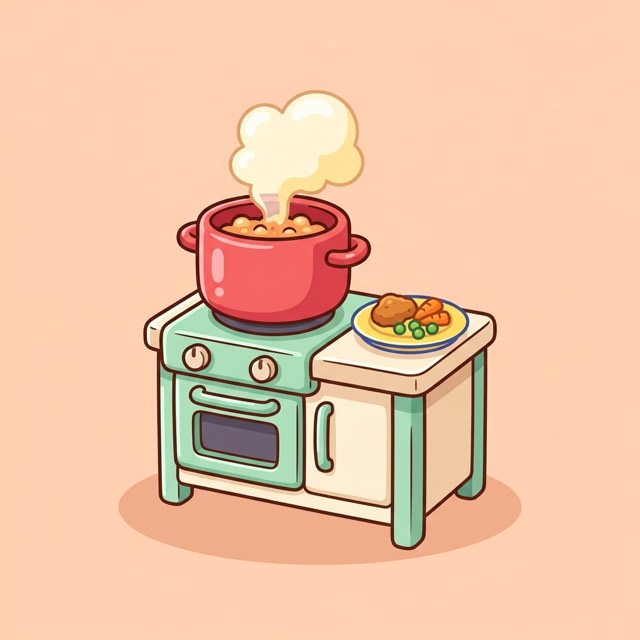
Be the cook. Orders arrive as tickets, and the customers wait at the hatch for their food. Cook it on screen, then cook it for real.
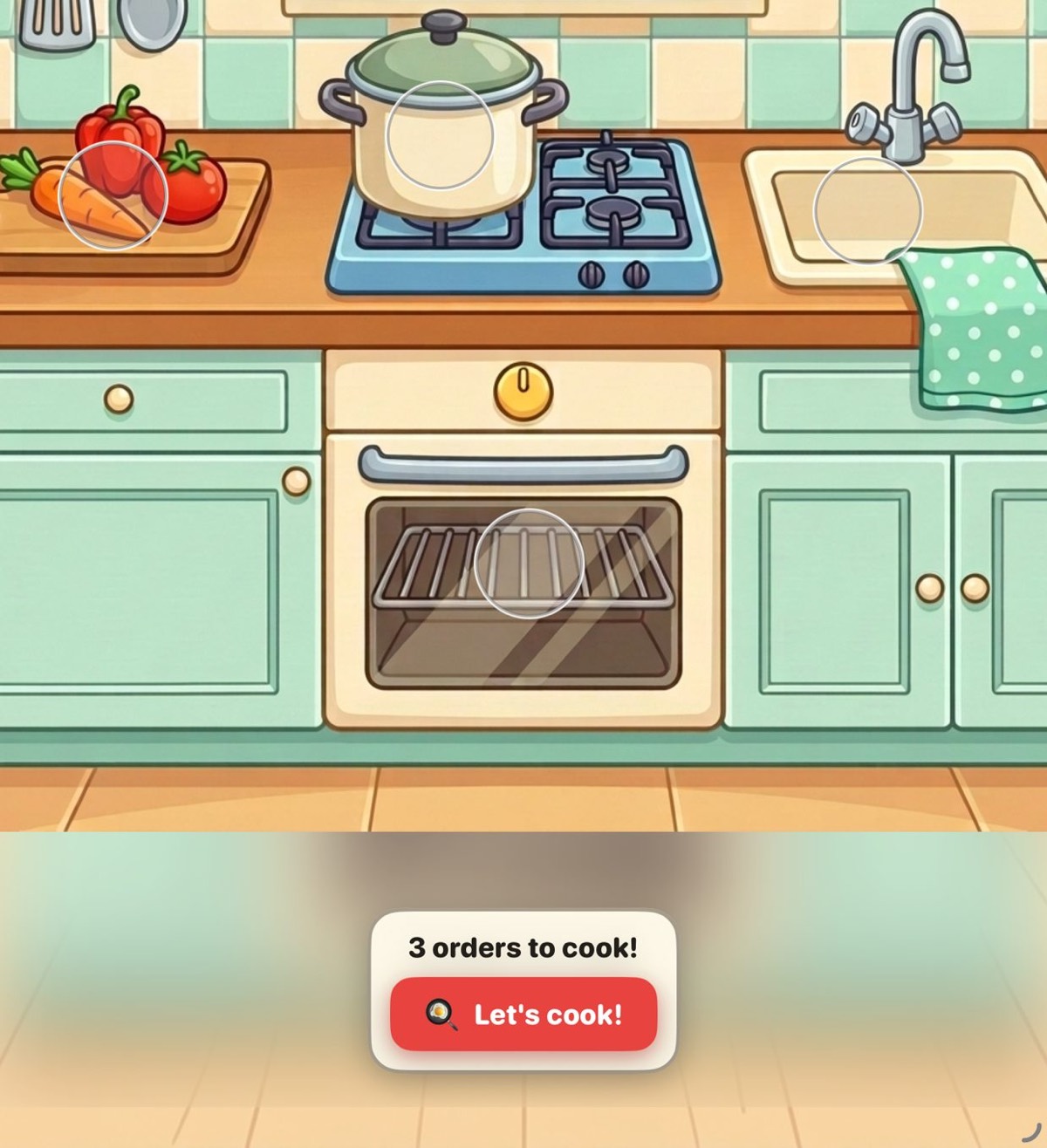 1
1- Let's cook!. You start at your kitchen bench. When orders are waiting, tap Let's cook! to go to the tickets.
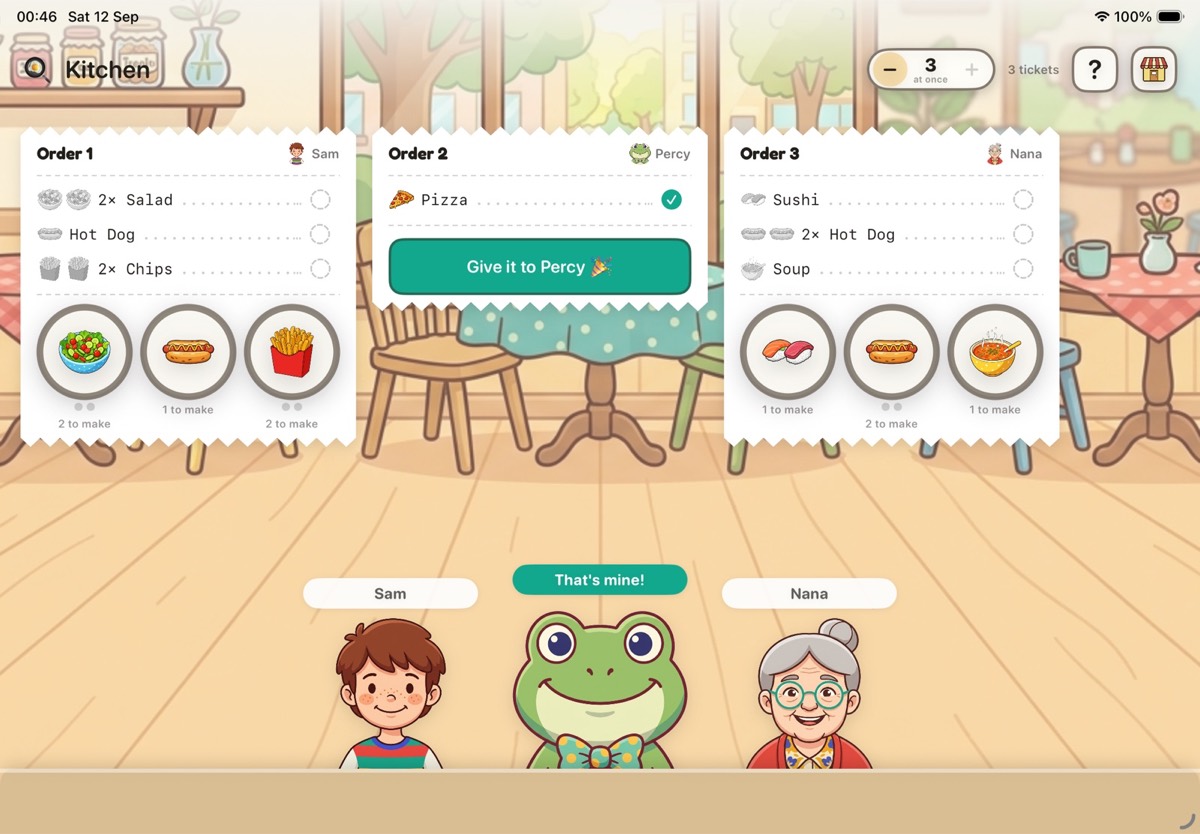 234
234- Read the ticket. Each order comes in on a ticket with a picture of everything on it.
- Cook each thing. Tap the food buttons under the ticket, one for each thing. Watch it being chopped, boiled, fried or baked.
- Give it to the customer. When everything on a ticket is cooked, the customer calls out That's mine! Tap the green Give it to… button to hand the food over.
Good to know
- The iPad keeps the tickets. The real cooking can happen in your own kitchen, with your own pots and pans, and you tap when it's done.
- No orders yet? Play at the bench: tap the chopping board, the pot, the oven or the sink, just for fun.
- Playing on your own, the number at the top sets how many orders come in at once.
- Cooking for a shop on the till? Choose Cook it after a customer pays.
Go Shopping
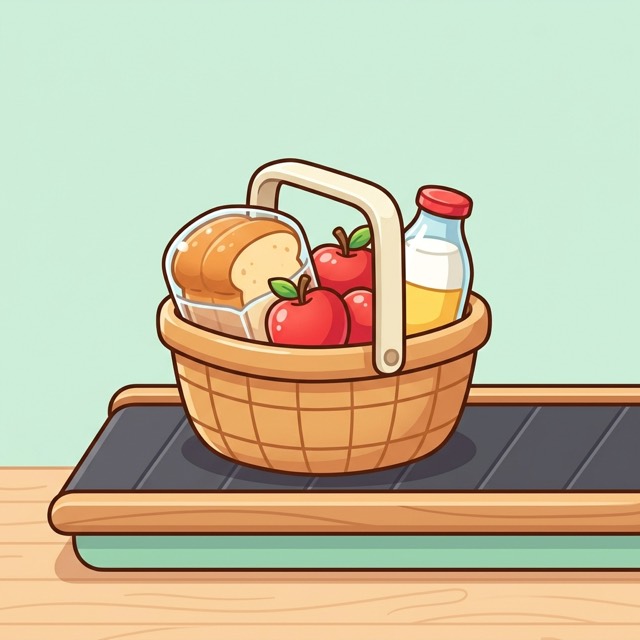
Be the customer. Find everything on your shopping list, then take it to the till.
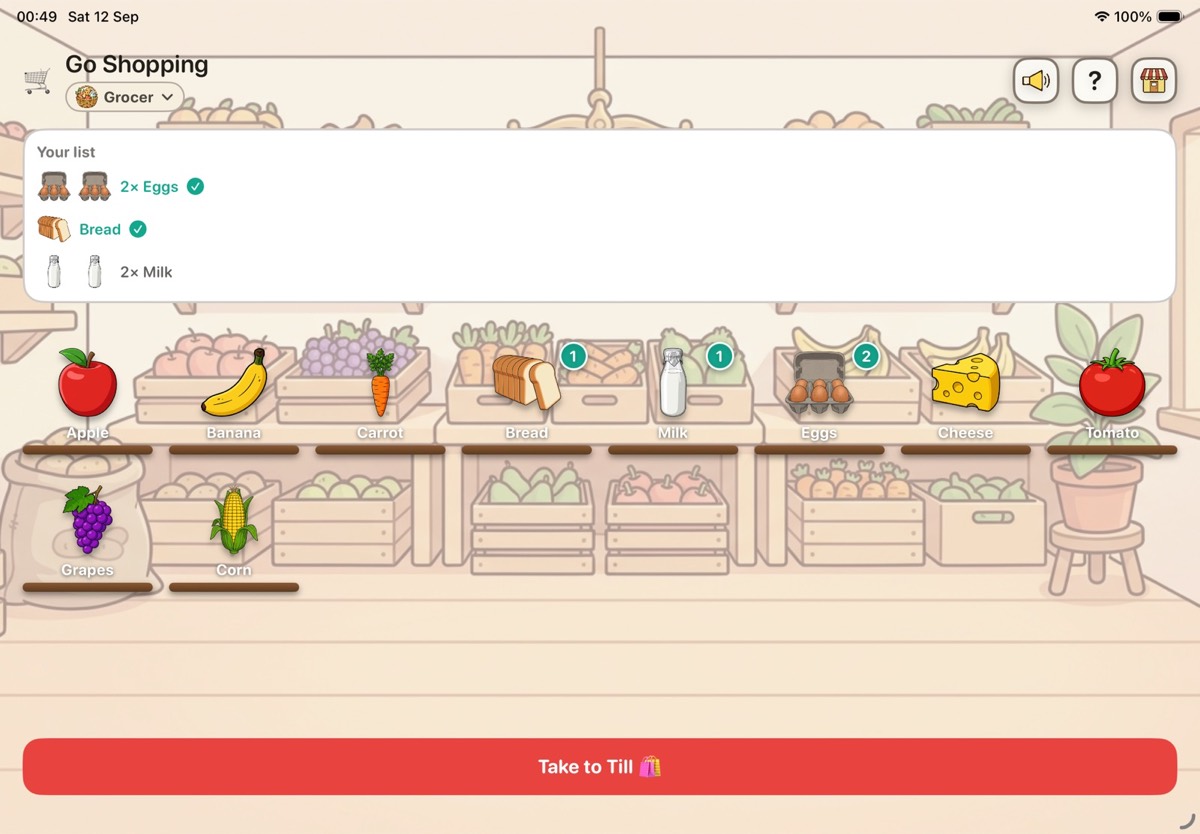 1234
1234- Choose a shop. Tap the shop's name under Go Shopping to pick where to shop. Each shop has its own shelves.
- Find your list. Your list is at the top. Tap the things on the shelves to put them in your basket, and each one ticks off.
- Put one back. Picked too many? Tap the number on the item to put one back.
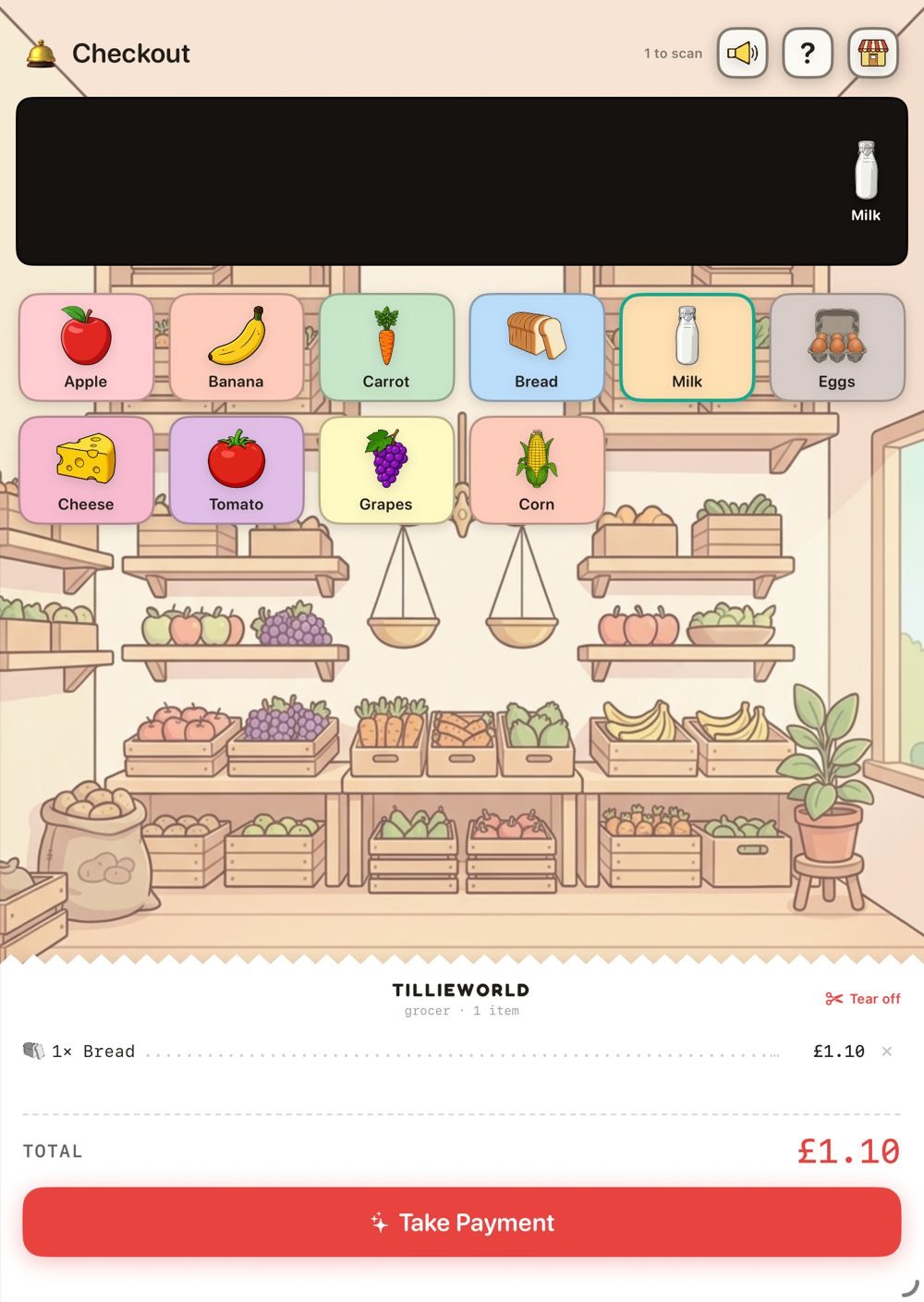 445
445- Take to Till. Tap Take to Till. Your shopping rides along the belt, and you tap the matching picture for each thing to ring it up.
- Pay. Tap Take Payment and pay, then it's back to the shelves for another list.
Good to know
- The shelves are the shopkeeper's own shop, so anything added to that shop in Your Shop is there too.
- Playing together, one of you shops while the other rings it up on the other iPad.
Deliver
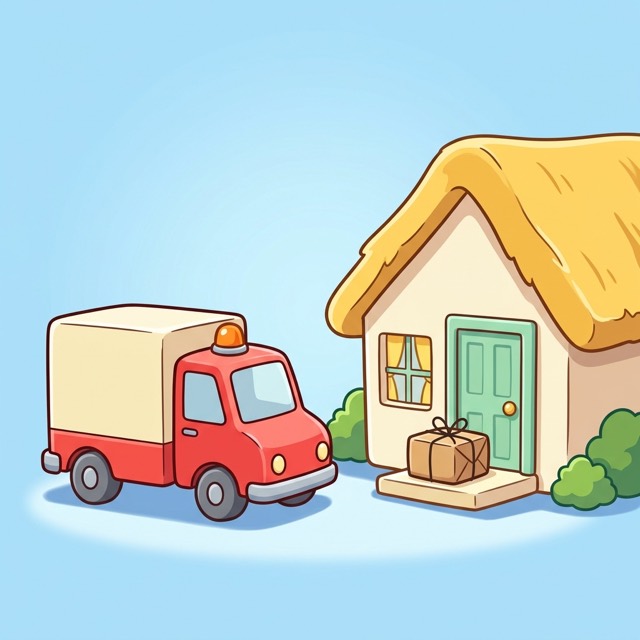
Be the delivery driver. Load the van at the yard, find the right house and hand over the parcel.
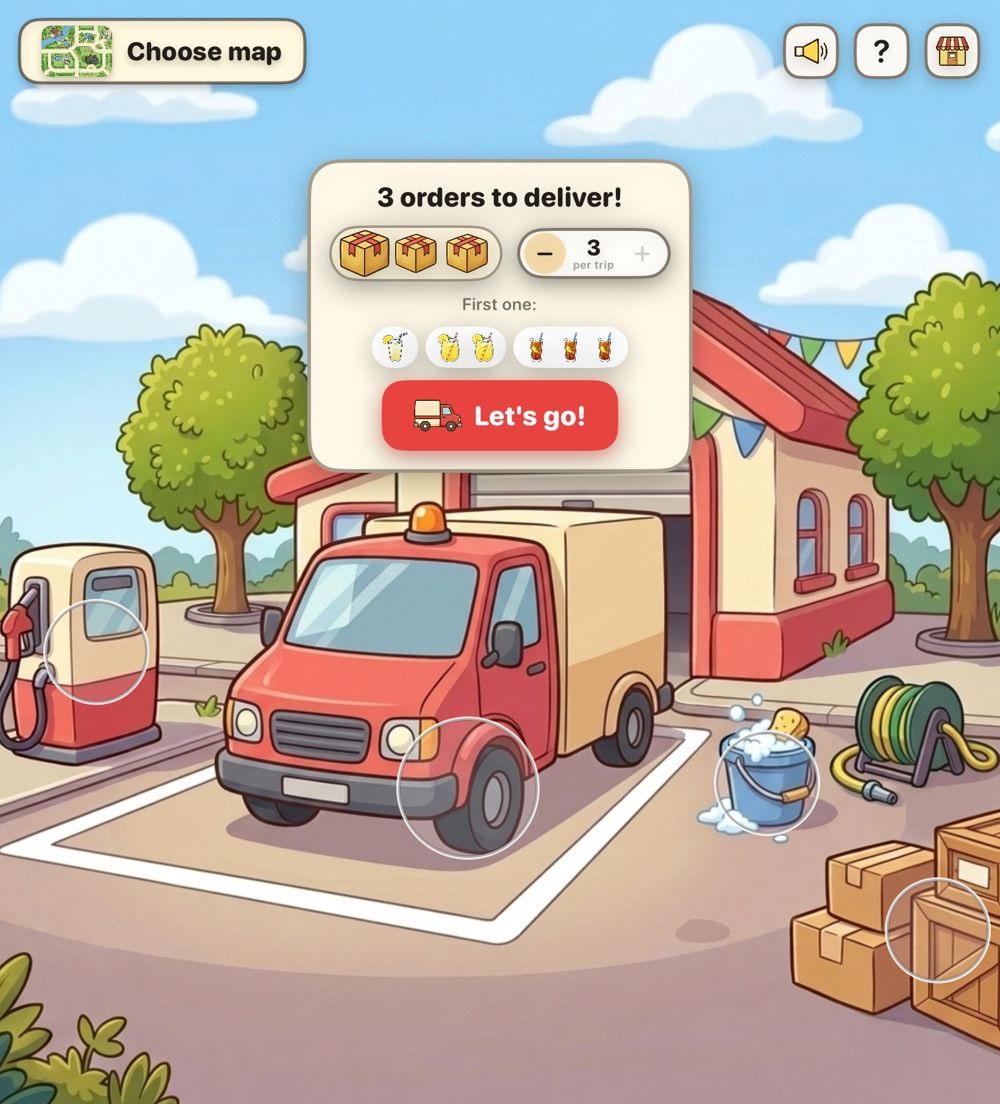 11
11- At the yard. When an order comes in, tap Let's go! The number beside the parcels sets how many go in the van on each trip.
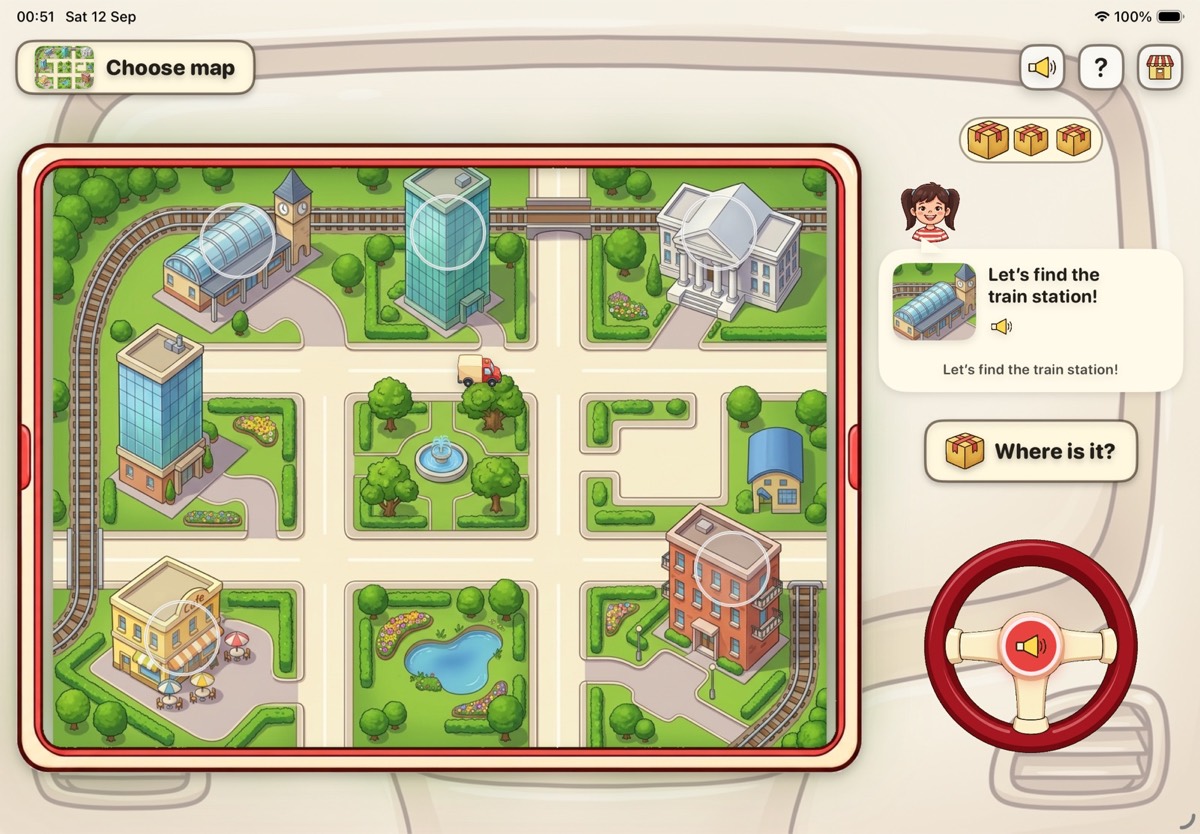 24
24- Find the house. The address is on the dashboard, with a picture of the house. Tap it to hear the address. Then tap that house on the map and the van drives there.
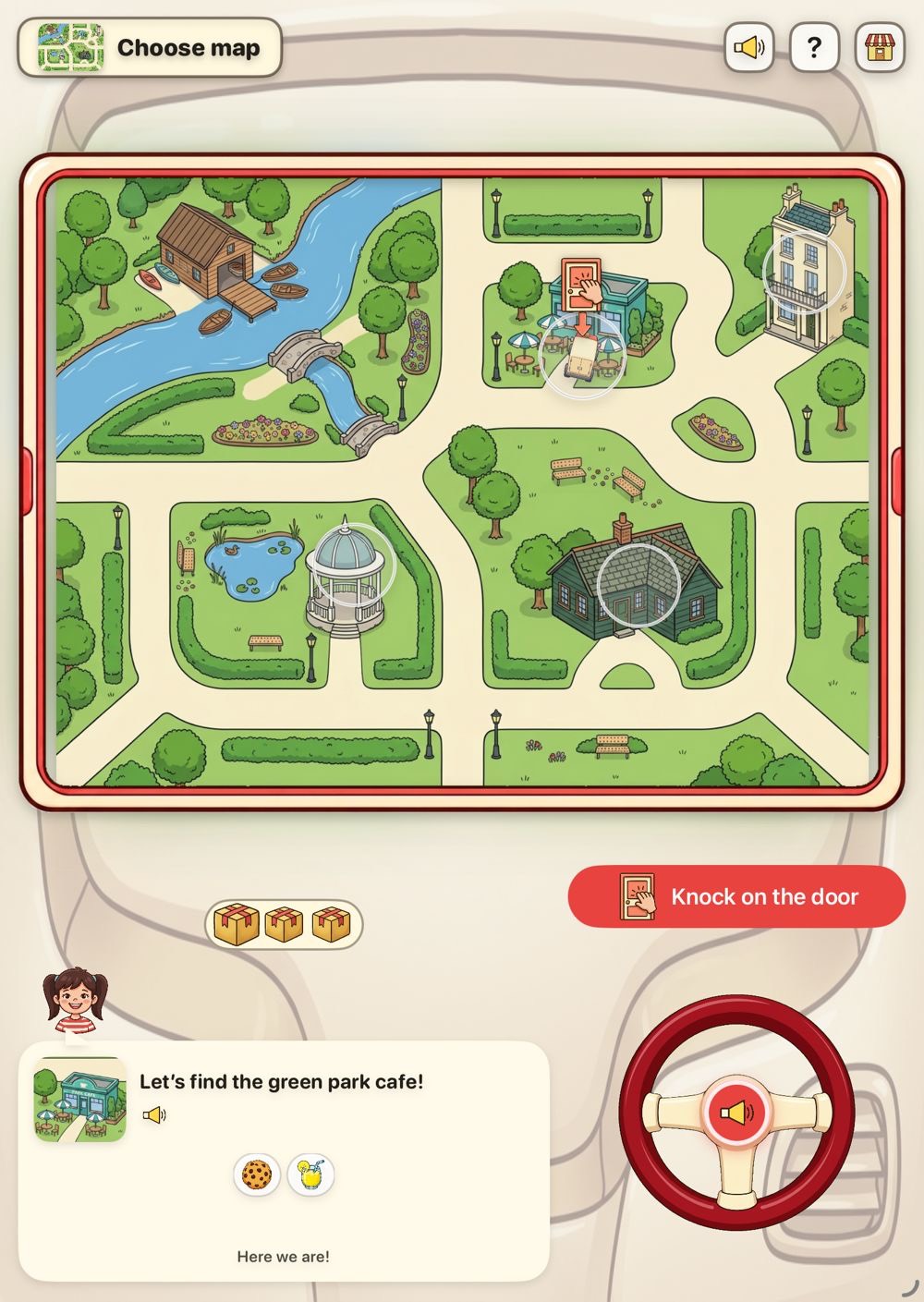 33
33- Knock on the door. When the van gets there, tap Knock on the door (or Ring the bell), and somebody comes to answer it.
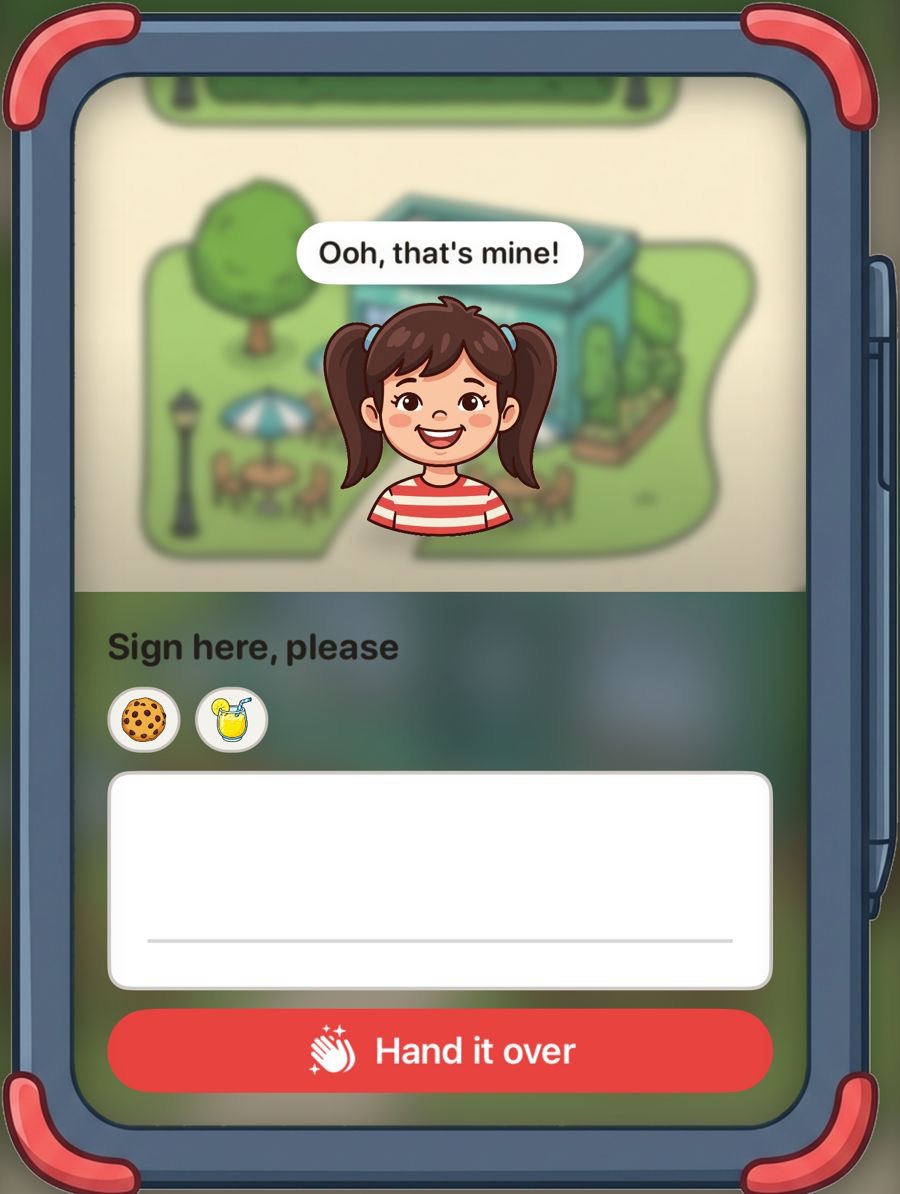 44
44- Hand it over. Draw a signature in the box if you like, then tap Hand it over. The parcels tick off, and when the van is empty it drives back to the yard.
Good to know
- Stuck? Tap Where is it? and a parcel appears over the house you're looking for.
- Knocked at the wrong house? Somebody answers and says it isn't theirs. Just drive on to the right one.
- Waiting at the yard, you can fill up the van, wash it, load the boxes or pump the tyres, just for fun.
- Tap Choose map to pick a different town, or Surprise me for a new one each time.
Vending Machine
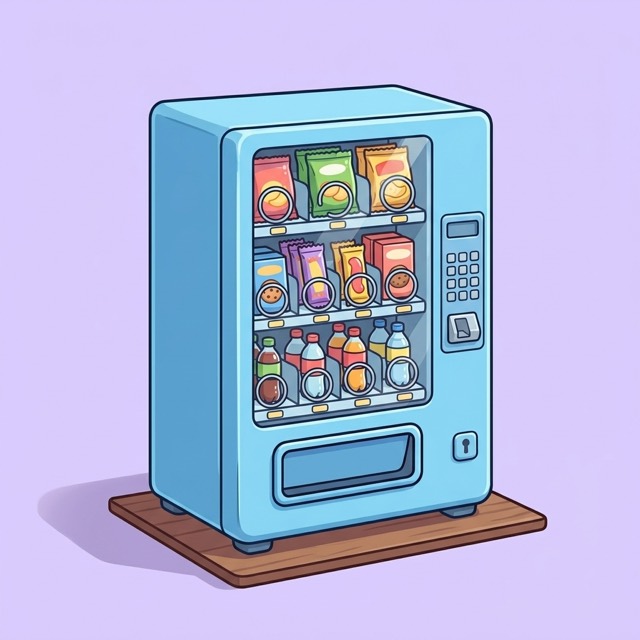
This time you're the customer. Pick a snack, pay for it, and watch it drop.
- Choose a snack. Tap the snack you want, or type its code on the keypad: a letter, then a number. The star button swaps the keypad for shapes and colours, for children who don't know their letters yet.
- Pay. Tap the purse to open it. Put coins in the slot, or tap your card on the card reader. Too much? The change drops into the cup, and Coins back gives back anything you haven't spent.
- Watch it drop. The spiral turns and your snack falls to the bottom. Tap it to take it.
- Stuck?. Sometimes a snack gets stuck, just like a real machine. Give the iPad a little shake, or bang on the glass.
Good to know
- The vending machine is free.
- Press and hold the purse to pick a different one: the purses drop down underneath.
- Tap the pencil to change the machine: tap a snack to change its name, price or picture, or tap + to add one.
- In edit mode, the arrow button puts the original snacks back.
Make yourself
Build a little you, then see yourself in the game: on Home, driving the delivery van, and at a brother's or sister's door.
- Open the wardrobe. On the Home screen, pick your player, then tap the little wardrobe badge on your circle.
- Choose your look. Use the tabs along the bottom: Skin, Hair, Eyes, Mouth, Glasses (and freckles) and Clothes. Tap the coloured dots to change the colour of your hair, glasses and clothes.
- Dress up. The Onesies, Dress up and Town jobs tabs have costumes. Your own clothes and the dinosaur onesie are free. The Animal Onesies, the Dress-Up Box and Town Jobs are extras for a grown-up to unlock.
- Done. Tap the tick when you're happy. The dice makes a surprise look, and the cross closes the wardrobe.
Good to know
- You can keep up to four looks in your wardrobe. Tap + to make another, tap a look to wear it, and press and hold one to remove it.
- Making yourself is free. It's built from picked parts: no camera and no photos.
Tidy-up jobs
Real jobs around the house earn pretend coins for your jar. Fill the jar and you get the treat you agreed with a grown-up.
- A grown-up sets the jobs. In Settings, under Tidy-up jobs, a grown-up picks jobs like Make your bed or Put your toys away, says how many coins each is worth and how often it comes back, and sets a goal for the jar.
- Do the job, then tap I did it!. The jar is in the top corner of the Home screen. Open it, do the job for real, then tap I did it! on its card.
- Show a grown-up. The grown-up taps Grown-up check, ticks the jobs that are really done, and taps Give coins. The coins tumble into the jar.
- Jar full!. When the jar fills up, it's time for the goal. A grown-up can print a voucher for it, then tip the coins into the piggy bank and start a new jar.
Good to know
- Each child has their own jar, so nobody's compared with anyone else.
- Every-day jobs come back by themselves the next morning. Nothing is ever lost or taken away.
- The coins are pretend. They're for filling the jar, not for spending.
- Tidy-up jobs are free.
Play Together
Two iPads, one game. One of you runs the shop while the other cooks, shops or drives.
- Switch on Family Link. A grown-up turns on Family Link in Settings, on both iPads.
- Open Play Together. Tap Play Together on the Home screen of both iPads. They find each other by themselves.
- Pick a game. Choose Shop & Kitchen, Grocery Run, Shop & Delivery or Home Delivery.
- Pick your jobs. Each of you picks a job, like the till or the kitchen, and then you start playing.
Good to know
- Both iPads need to be awake, with Wi-Fi and Bluetooth switched on. They don't need to be on the same network.
- While you're playing together, anything either iPad has unlocked works on both.
For grown-ups
Settings live behind the gear on the Home screen, so they can't be wandered into mid-game.
- Get past the grown-up check. Tap the gear, then answer the sum written out in words. The first time, it offers to set your own passcode, which is the safest lock, since children can learn to work out the sum.
- Add players. Give each child a player of their own, so everyone keeps their own shops. Switch players on the Home screen.
- Set how they play. Switch the kitchen on or off and choose how delivery orders arrive, for each player. The patience timer, off unless you switch it on, gives older children a gentle minute to serve each customer. Whether customers come in and how busy it gets are buttons on the till itself, so children can change them while they play.
- Unlocks. Extra games and shop packs are one-off purchases in Unlocks. Tap Restore Purchases if something you've bought isn't showing.
- What's in Settings. Players and Tidy-up jobs at the top. Then a section for each game you have: the patience timer and voices for customers, the kitchen switch, and how delivery orders come in (in the shop, online, or a bit of both). Family Link for playing on two iPads, Sounds, the currency and Printables, Unlocks, and the grown-up passcode, which can also ask before anything prints.
Good to know
- TillieWorld is a prop for pretend play. The iPad is the till, the kitchen and the van; the shop is your living room, with real shelves, real things to sell and a real customer. It works best set up that way.
- There's nothing to lose or fail. A wrong order is simply taken anyway.
- No adverts, no accounts, no data collected, and it all works offline.
- Printing uses AirPrint. The shop menu, shop sign, play money, play coins, loyalty cards and the day's takings are under Printables.
- Reset shops to default, at the bottom of Settings, puts the shops back the way they came.